Free Windows & Software Product Key Recovery Tool
SterJo KeyFinder (also known as a productkey finder) helps you recover keys quickly and safely.
Lost your Windows product key or an Office product key? SterJo Key Finder is a free, lightweight Windows utility that quickly locates and recovers product and serial keys stored on your system — including local and external drives. No installation is required for the portable build.
Fast, portable productkey recovery
SterJo Key Finder scans your Windows registry and application metadata to locate saved product keys for Windows, Microsoft Office and hundreds of popular programs. It is designed for speed and simplicity: run the tool, wait a few seconds while it scans, then save the results as a text file for safe keeping. The recovered keys can help you reinstall software or preserve license details before formatting or hardware changes.
It also can help you find Windows 10 product keys (including use as a Win 10 product key finder), recover older Windows XP keys and Windows XP license keys, locate serial keys such as a CS5 serial number, Camtasia license, VMware Workstation key, and assist with Microsoft product activation and license key recovery
How SterJo Key Finder works
Simply download the tool, run it as administrator, and it scans your system, BIOS, and external drives to locate all recoverable product keys. Export results in TXT, CSV, or HTML for safekeeping.
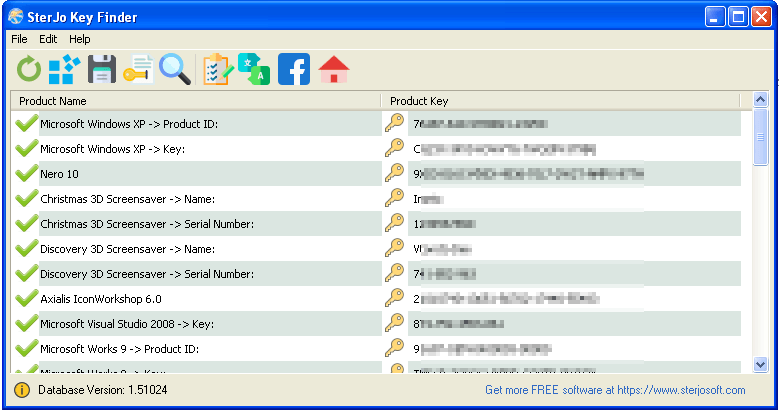
Example: SterJo Key Finder lists installed products and their serial keys
After launching the program, SterJo Key Finder reads registry locations and known storage formats to retrieve product keys previously present on the machine. It does not generate or brute-force keys — only keys that were actually stored on the scanned system will be shown. Use the Save option to export the recovered keys as a plain text file for backup.
Supported items:
- Windows XP, Vista, 7, 8, 10 and Windows 11 product keys
- Microsoft Office 2007, 2010, 2013*, 2016* and Office 365* activation
- AutoCAD serial numbers
- Camtasia license keys
- VMware Workstation keys
- WinZip, Corel, Nero, CyberLink and more
Download & Install
Installing is simple: download the installer or portable ZIP, extract (if applicable) and run KeyFinder.exe. The portable version runs without modifying system files. For a complete list of other tools, visit Products. If you need help, see our FAQ page.
📥 Download SterJo Key Finder v2.0 (2.1 MB)
Download Installer Portable Version✓ Works on Windows 11, 10, 8, 7, Vista, XP (32/64-bit)
Version history
v2.0 — Multi-language support, UI refresh, removed .OCX dependency.
v1.9 — Deep registry scan for local and external drives.
v1.8 — Added BIOS OEM key support.
v1.2–1.7 — Bug fixes and improvements.
v1.1 — Major update.
v1.0 — First public release.
Recover keys from an unbootable Windows drive
- Attach the unbootable drive to a working Windows PC (via SATA, USB adapter, or enclosure).
- Run SterJo Key Finder on the working PC.
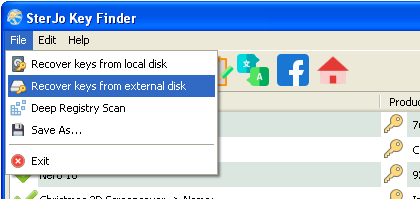
- Open the File menu and choose Recover keys from external drive.
- Select the Windows folder on the external drive (for example
F:\WINDOWS) and start the scan.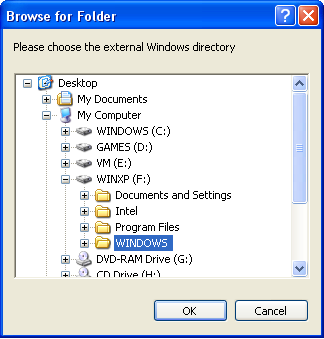
Office 2013 & 2016 — special cases
Modern Office versions may store keys differently. In some cases SterJo Key Finder cannot recover the full key; we provide a small helper tool that can reveal the last five characters of some Office licenses. Download the helper from below if needed.
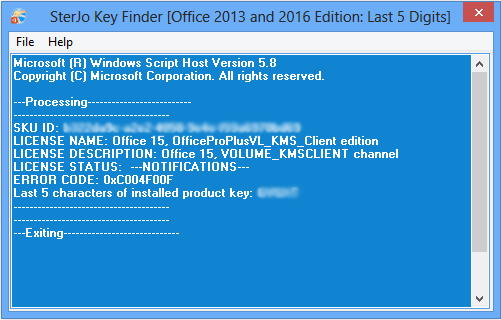
Download Office 5-digit helper
SterJo Key Finder acts as a Windows 10 licence key finder and Office licence key finder, allowing you to retrieve Windows 10 product keys, get Windows 10 product keys from unbootable systems, find Office product keys including Microsoft Office 2007 product keys, and assist with Microsoft Office 365 activation. It is a lightweight alternative to full license management software when you only need fast key recovery.
The tool can also recover older licenses such as a Windows XP serial key, Windows XP product key, and serial key Windows XP systems stored in legacy registry formats.
Frequently Asked Questions
Is SterJo Key Finder safe to use?
Yes. SterJo Key Finder reads system registry data and displays stored license keys — it does not upload keys to external servers by default. Always download from the official SterJo site and scan installers with your antivirus if you have concerns.
Can I run SterJo Key Finder from a USB stick?
Yes. The portable build is available and runs without installation. It is ideal for technicians and recovery tasks on multiple machines.
What if SterJo Key Finder doesn't show my application's key?
Some applications store keys in proprietary formats or remote activation servers; in those cases the key may not be recoverable. Check our supported list page for compatibility notes or contact support via Contact.
Can I recover keys from a drive that won't boot?
Yes. Attach the drive to a working PC and use the "Recover keys from external drive" option. See the instructions above for the required Windows folder path.
Can SterJo Key Finder recover keys for all software installed on my PC?
SterJo Key Finder attempts to read product keys stored in the Windows registry and known formats, but it can't recover every product key. Some software stores activation information in proprietary or encrypted locations, or uses online activation services, so the key may not be recoverable. For a list of supported products, please check the supported list page or contact support.
Does SterJo Key Finder generate new product keys?
No. SterJo Key Finder only retrieves keys that were previously stored on your system. It does not generate new or valid keys for software you have never installed.
Can I save the recovered keys for future use?
Yes. After the scan completes, you can save the list of recovered product keys to a text file. This is useful when you plan to reinstall Windows or other applications.
Does SterJo Key Finder work on non-Windows operating systems?
No. SterJo Key Finder is designed specifically for Windows and works on versions including Windows XP up through Windows 11. It does not work on macOS, Linux, or mobile platforms.
Can SterJo Key Finder retrieve a Windows 10 product key?
Yes. It can retrieve Windows 10 product keys from the local system or from an unbootable drive using the external drive recovery feature.
Can I use SterJo Key Finder as an Office licence key finder?
Yes. It can find Office product keys for supported versions including older editions such as Microsoft Office 2007 and help with Office licence recovery.
Does SterJo Key Finder support Windows XP serial keys?
Yes. It can recover Windows XP serial keys and Windows XP product keys stored in legacy registry locations.
Is SterJo Key Finder a replacement for license management software?
No. It is not full license management software, but it is ideal for quickly recovering lost product and serial keys without installing heavy enterprise tools.
Is there a size or system requirement to use SterJo Key Finder?
There are no heavy system requirements for SterJo Key Finder — it is a lightweight tool. It runs on Windows systems with minimal disk space and RAM needed, and the portable version can run directly from a USB drive without installation.
Will running SterJo Key Finder modify my registry or system files?
No. SterJo Key Finder doesn't change registry entries or system settings. It only reads data needed to locate stored product keys.
What should I do if my antivirus flags Key Finder as suspicious?
Some security tools may give false positives. Make sure you download SterJo Key Finder only from the official SterJo website. Scanning the installer with an up-to-date antivirus first can reassure you the file is safe.
What formats can I export recovered product keys to?
You can save recovered keys as plain text (.txt), (.csv), or (.html) files. This ensures easy backup and retrieval during future installations.
📋 Popular Password Guides
- Wi-Fi How to Find Any Saved Wi-Fi Password
- Product Keys Backup Keys Before Reinstalling Windows
- Security Detect Unauthorized Network Access
- Chrome Recover Saved Chrome Passwords
- Windows Windows Credential Manager Explained
